
How to upgrade your plan and top up Aira points
Every purchase lives on one "Plans & add-ons" page: the capacity comparison table, Aira point packs, single add-ons, and promo codes. After buying, the "Plan & Billing" page in your profile is where you watch remaining quota, point balance, and purchase history.
Prerequisites
- A Datella account
- On the web, card and e-wallet payments are not all live yet — some purchases only work through the Android app (see step 5)
Open the Plans & add-ons page
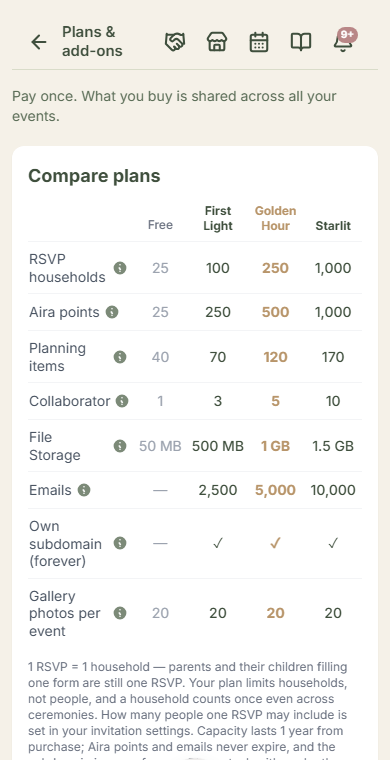
From your profile, tap the plan row — or open /upgrade directly. At the top sits the "Compare plans" table with a "Free" column on the far left and three paid plans beside it. The rows compare what you actually spend: events, RSVP entries, Aira points, planning items, collaborators, file storage, emails, your own subdomain, and gallery photos per event. Below the table the plan cards line up — one flagged "Most popular" — each with its price on it.
Read the validity note
Below the table sits an important note: capacity lasts one year from purchase, Aira points and emails never expire, the subdomain is yours forever, and plans stack. Buying two smaller plans is a legitimate way to reach a bigger total — the numbers genuinely add up.
Top up Aira points
Scroll to the "Aira points" section: a grid of point packs (100, 250, or 600 points), each with its price, and the reminder "Never expire. A Lite message costs 1 point, a Pro answer 5." Arriving here from an Aira chat that ran dry? The "See points & plans" link drops you right on this section.
Apply a promo code
Every plan card has a "Have a promo code?" fold — tap it, type the code, press "Apply". A valid code shows "{pct}% off applied" before you pay. If you see one of these instead, it means what it says: "This code isn't valid or has expired.", "This code has run out.", or "You've already used this code." — promo codes are limited per person.
Buy in the Android app or on the web
In the Android app, purchases run through Google Play with your Google account's payment methods. On the web, where card and e-wallet payments are not live yet, the page shows a "Purchases happen in the Android app" card explaining how to install Datella from Google Play and sign in with the same account — your purchases follow the one account, wherever you pay.
Track usage and history on Plan & Billing
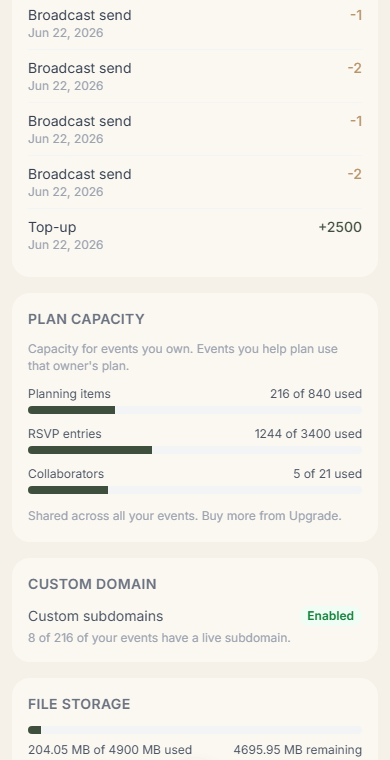
Open /profile/plan: the "Plan & Billing" page shows your point balance (plus any held for an in-flight AI request), "{used} of {cap} used" capacity bars for events, planning items, RSVP entries, and collaborators, file storage, the subdomain card, plus "Payment History" and "AI Point Activity". Each purchase's status is written plainly: "Paid", "Awaiting payment", "Refunded", or "Not completed".
Common questions
I bought in the app — does it work on the web?
Yes. Purchases follow the account, not the device: buy through Google Play on Android and the capacity shows up the moment you sign in with the same account on the web.
My purchase says "Awaiting payment" — is my money gone?
No. It means payment verification (say, from Google Play) is still running, or the payment is not yet completed at the outlet or method you chose — your money is safe and the plan lands automatically once it finishes. No need to buy again.
Can I get a refund?
There is a seven-day refund guarantee explained on the /pricing page. For Google Play purchases the process runs through Google; once processed, the row shows "Refunded" in your history.
Where can I check remaining quota without the upgrade page?
At /profile/plan — or from Settings, the "Plan Capacity" section shows usage per kind: events, planning items, RSVP entries, collaborators, and file storage.
Try Datella free — sign up in under a minute.
Start free