
Meet Aira, your planning assistant in Datella
Aira is an AI assistant that reads your event's context — guests, budget, tasks, invitation — and does what you ask over plain chat. She lives in the round button at the center of the bottom navigation; tap it from any page and the conversation follows your active event.
Prerequisites
- A Datella account with at least one event
- A few AI points — every new account starts with 25 free, and they never expire
Open Aira from anywhere
Tap the round Aira-logo button in the middle of the bottom navigation. A chat sheet slides up without leaving the page you were on, and the conversation is always about your active event. The very first open shows a quick "Ask Aira anytime" note — tap "Got it" and you are in.
Pick a focus
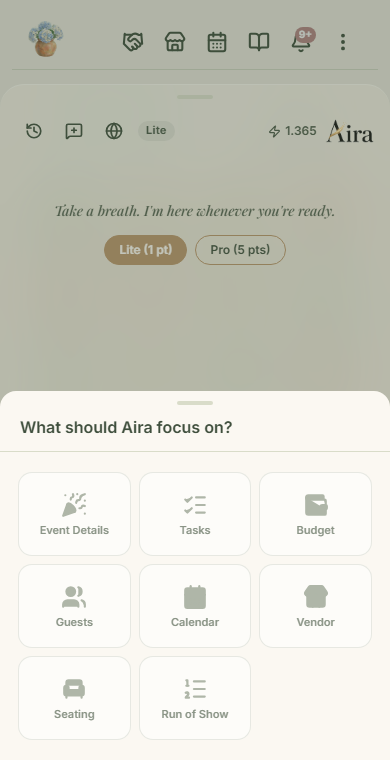
At the foot of the sheet sits a "Choose focus" pill. Tap it to open "What should Aira focus on?" — eight tiles: Event Details, Tasks, Budget, Guests, Calendar, Vendor, Seating, and Run of Show. A focus makes Aira prioritize that part — and opening Aira from a page, Budget for instance, sets the matching focus automatically. The chat stays free-form: a focus is a direction, not a cage.
Choose Lite or Pro
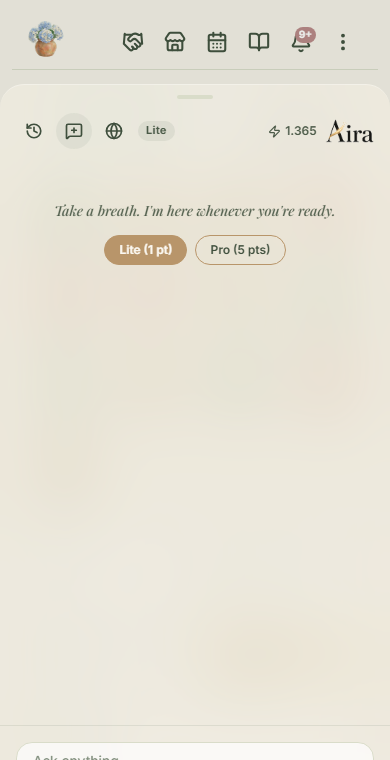
Before your first message goes out, two pills appear: "Lite ({n} pt)" and "Pro ({n} pts)". Lite spends 1 point per reply and handles everyday questions. Pro spends 5 and thinks longer on the tangled jobs, like drafting a run of show from messy notes. Your choice is remembered for later chats, and the active mode shows as a badge in the sheet header.
See the cost before you send
The send button carries a badge with the points the reply will spend — a price tag, not a guess. If the cost exceeds your balance, the badge turns red before you press anything. Your balance sits in the sheet header beside Aira's name and refreshes after every turn. Messages with photos price differently: 5 points per image, whatever the mode.
Allow AI once, for the account
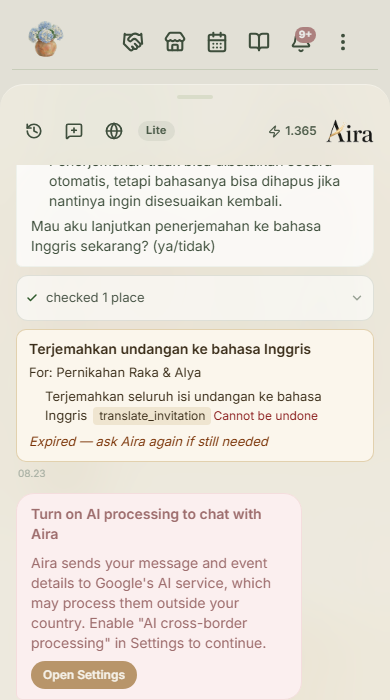
Your first message may be stopped by a card: "Turn on AI processing to chat with Aira". This is a once-per-account consent: Datella sends your messages and event details to Google's AI service, which may process them outside your country, so the permission is explicit. Tap "Open Settings", switch on "Cross-border AI Processing", and the chat flows. Nothing leaves before you agree.
Return to past chats
The history icon in the sheet header lists your conversations, grouped with the active event first and other events after. Tap one to pick up where you left off; chats are stored on your account, not your phone, so switching devices loses nothing. Finished threads can be deleted right from the list.
Common questions
What data gets sent to the AI?
What you type plus the relevant event details — guests, budget, tasks — go to Google's AI service, which may process them outside your country. That is exactly why the consent is explicit and revocable from Settings at any time.
What is the difference between Lite and Pro?
Price and depth. Lite is 1 point per reply for light questions and commands; Pro is 5 points and powers the long-reasoning work — drafting plans, tidying a run of show, translating an invitation.
How many free points do I get?
25 at sign-up, with no expiry date. When they run out, the "See points & plans" button on the warning card takes you to the page for adding more.
Can anyone else read my chats?
Chats are stored under your own Datella account on the server, grouped per event, and open only from your history. Deleting a thread from history removes it from your list, along with any images sent in that thread.
Try Datella free — sign up in under a minute.
Start free