
How to manage notifications in Datella
Datella notifications have two sides: an inbox that records what already happened in your event, and one preferences page that controls how news reaches you — push, email, quiet hours, which categories may speak, and how much detail a push shows on your lock screen.
Prerequisites
- A Datella account with at least one event
- For push: a browser or phone allowed to show notifications
Get to know the inbox
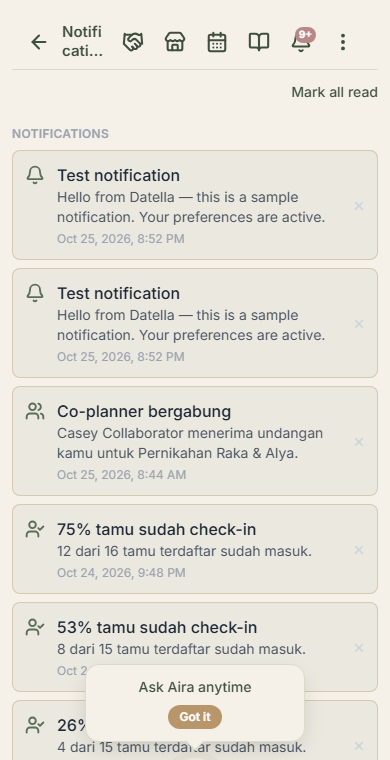
The bell at the top right of the page opens the Inbox; the small count above it tracks unread items (past nine it reads "9+"). What lands there is event news: "New RSVP", "First guest has arrived", check-in percentages, a co-planner joining, comments, sent broadcasts. Tapping a row marks it read and takes you to the related page: the guest list for a new RSVP, the check-in console for guest progress. The "Mark all read" link above the list finishes them all at once; the × at the end of a row dismisses them one by one, and the ⋮ menu holds "Notification preferences" and "Clear all".
Turn on push and pick channels
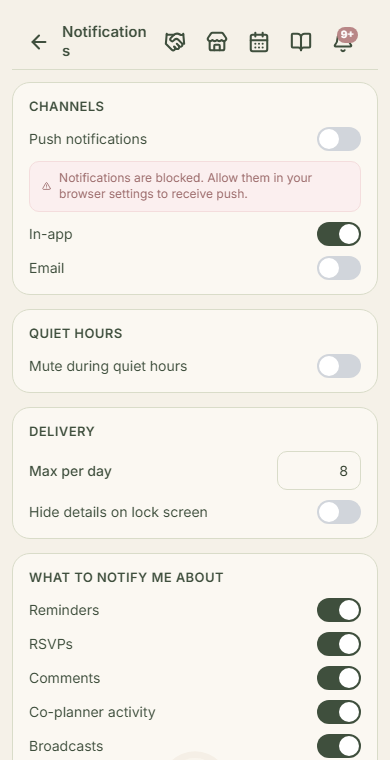
Every setting lives on one page: from your profile, tap the "Notifications" tile, or from the Inbox use ⋮ → "Notification preferences". The "Push notifications" switch asks the device for permission the first time you enable it — if that permission was denied, the app cannot force it and this page will tell you to change it in your browser settings. Below it, the "Channels" section has two more switches: "In-app" fills the inbox, and "Email", off by default; turn it on if you want news to reach your email too.
Set quiet hours, a daily cap, and privacy
Three settings on the same page handle the manners of your notifications. "Quiet hours" (with a from/to time, 22:00–08:00 by default once enabled) holds scheduled reminders: their push waits and goes out at the end of the quiet window; nothing is dropped. "Max per day" caps how many reminder pushes go out in a day; the overflow is held until eight the next morning, and a reminder held back too many times is delivered anyway. And "Hide details on lock screen" makes reminder pushes say only "A reminder is waiting" without the task name. People around you don't read your schedule along with you; the full text is waiting inside the app.
Choose which categories may speak
The "What to notify me about" section holds ten category switches: Reminders, RSVPs, Comments, Co-planner activity, Broadcasts, Aira messages, Account security, Support, Admin actions, and Test notifications. Turn off what you don't need — Broadcasts during the quiet week before the day, for instance. One category is locked: "Account security" stays on, because a sign-in alert is exactly the news you never want to miss.
When a push never arrives
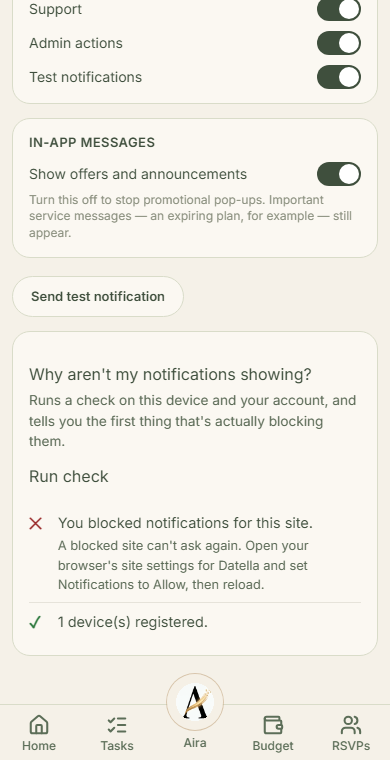
At the bottom of the preferences page sits "Why aren't my notifications showing?" — tap "Run check" and it names the cause one by one: this device isn't registered (with a "Register this device" button), an old registration has expired, browser permission is blocked, quiet hours are active, or the category you're waiting for is muted. On Android phones it also flags manufacturer habits: MIUI, ColorOS, and One UI battery savers love killing background apps. Finally, "Send test notification" proves the whole chain works in seconds.
Common questions
Why don't pushes show up on my Android phone?
Run "Why aren't my notifications showing?" at the bottom of the notification preferences page. On Android the most common cause is the manufacturer's battery setting (MIUI, ColorOS, One UI) killing the app in the background — the page spells out the check per manufacturer.
What kinds of notifications arrive in the inbox?
Activity in your event: new RSVPs, check-in progress ("First guest has arrived", guest percentages), a co-planner joining, comments, sent broadcasts, Aira messages, and account security alerts. Task reminders have their own home on the Calendar page.
I dismissed a notification — is the thing itself gone?
No. Dismissing a row only tidies your inbox list; the underlying event is untouched — the RSVP is still in the guest list, the check-in still counted in its console.
Can I pick email per notification type?
Not for email — it runs on a single switch for all news. The categories on the preferences page govern push and the inbox together, not push alone. If that feels noisy, just leave email off as it ships.
Try Datella free — sign up in under a minute.
Start free