
How to use the calendar and reminders in Datella
The calendar merges two kinds of dates onto one screen: reminders you create yourself and task due dates (subtasks included) from the checklist. The timeline view pins overdue tasks at the very top, so nothing slips by quietly.
Prerequisites
- An event has been created
- A few checklist tasks with due dates make the calendar livelier (optional)
Open the calendar
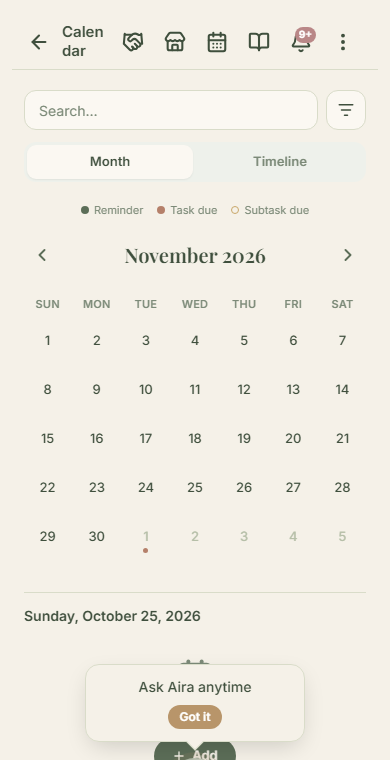
From Home, tap the "Calendar" tile or the calendar icon in the page header. The "Month" view marks busy dates with colored dots under a three-item legend: "Reminder", "Task due", and "Subtask due". Tap a date to see what that day holds.
Read the timeline
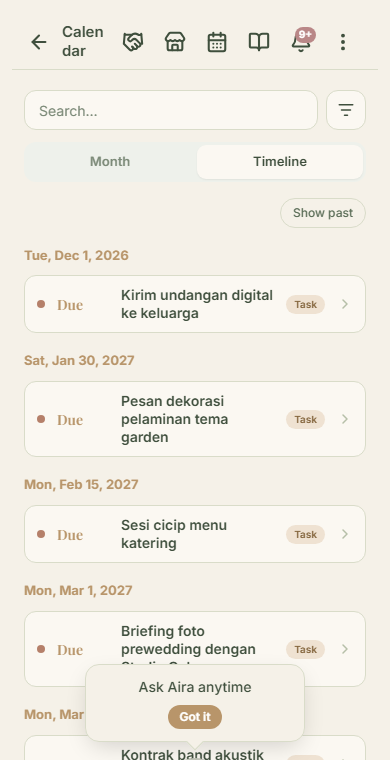
Tap "Timeline" to see the schedule run day by day, grouped "Today", "Tomorrow", and onward. Past days are hidden by default — tap "Show past" to look back. A task past its due date and still unfinished climbs into an "Overdue" group pinned at the top; reminders are never marked overdue — at worst they move when snoozed.
Create a reminder
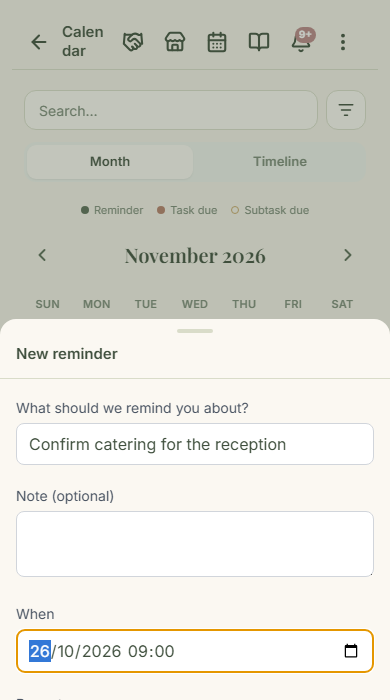
Tap "Add" in the ⋯ menu, or the add button on an empty day. Fill in "What should we remind you about?", an optional note, the time, and the repeat: "Doesn't repeat", "Daily", "Weekly", or "Monthly" — a good fit for a vendor's monthly installments. The reminder lands on its date immediately.
Snooze for a day
A reminder you cannot get to yet can wait: tap "Snooze 1d" and it moves to tomorrow flagged "snoozed". The snooze is saved server-side, so switching phones loses nothing. Editing a reminder only changes its title, note, and time; its repeat pattern stays as created.
Filter what shows
Tap the funnel icon to open "Filters". Narrow by status (All, Pending, Snoozed), by source (All, Manual, Recurring, Aira), or switch whole layers off — "Reminders", "Tasks", or "Subtasks" — when you want one kind only.
Common questions
Which dates appear on the calendar?
Two sources: reminders you create on the calendar (recurring ones included) and checklist tasks plus subtasks that carry due dates. Both are tied to an event: a reminder is created for the event you have active, and tasks only appear for the event you currently have open.
Can I sync to Google Calendar?
Not yet. Calendar export is on the roadmap; for now the Datella list is the single source of truth — the checklist CSV export works as a stopgap.
What happens to a reminder I ignore?
Reminders are never flagged overdue. Snooze one and it moves to its new date; leave it and it stays put until you snooze, edit, or delete it.
Why do my checklist tasks not show on the calendar?
Check that the task has a due date — a task without one has no date to plot. Also check the active event: tasks only appear for the event you currently have open.
Try Datella free — sign up in under a minute.
Start free