
How to secure your Datella account and delete it if you must
Your invitation, guest list, and budget all hang on one account. This page covers keeping it safe: changing and recovering your password, two-factor authentication (2FA) with backup codes, signing out of devices you forgot, and, if the time comes, deleting the account under a 30-day grace period you can cancel any time before it is final.
Prerequisites
- A Datella account
- An authenticator app on your phone (Google Authenticator, Authy, or similar) for the 2FA step
Change your password — and recover a lost one
In your profile (the Settings page), the Security section has a "Change Password" form: enter the old one, type the new one twice, done. If it's the old password that's gone, the "Forgot password?" link on the sign-in page emails you a reset link, valid for one hour, and the system deliberately never reveals whether an email is registered. After a successful reset, every session on other devices is signed out: whoever was riding along gets locked out too. A reset also wipes 2FA and its backup codes — so if you are ever locked out by someone else's 2FA factor (or lost your authenticator), resetting the password is the way back in, and you can turn 2FA on again afterwards.
Enable 2FA and save the backup codes
Still in Security, the "Enable 2FA" button walks you through four steps: confirm your account password (accounts signed up with Google aren't asked for one), copy the setup key into your authenticator app, enter the six-digit code it shows, then save the ten backup codes displayed this one time only — the screen itself is titled "Save these backup codes". One backup code stands in for one authenticator code when your phone isn't around. The scope today is narrower than the name suggests: 2FA "isn't required at sign-in yet — it protects sensitive actions in Settings", like turning 2FA off or issuing new backup codes; both of those ask for a fresh code first.
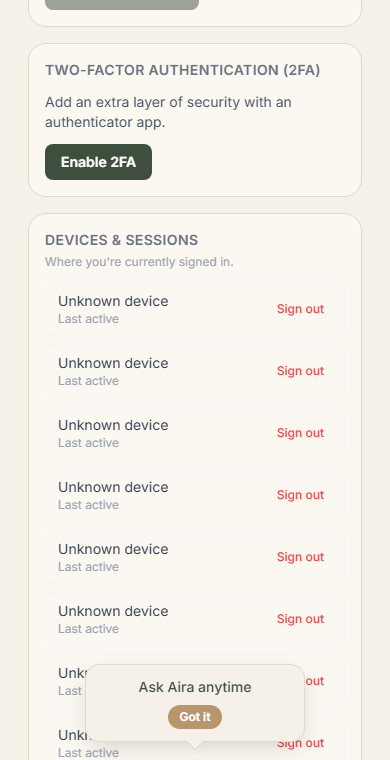
Review devices and sessions
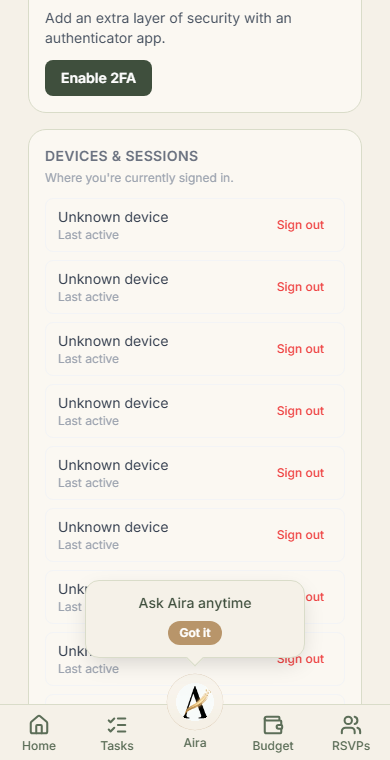
The "Devices & Sessions" section lists every place you're currently signed in, with a "This device" marker for the one in your hand. The "Sign out" button on each row revokes a single session; "Sign out everywhere else" clears the rest in one stroke, handy after lending a laptop or losing a phone. Both actions also send a security notification to your account, so you always know when the session list changed.
Before deleting: know what you can take with you
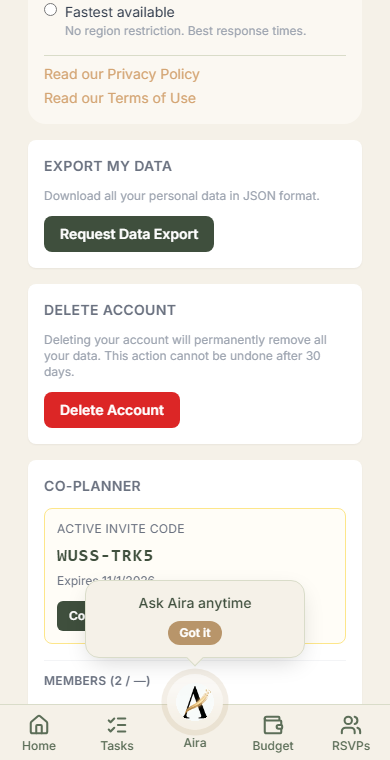
The "Export My Data" section above delete issues a file with your account details and the list of your events — not each event's contents. Guest lists, budget, checklist, and invitations are not inside it. If those are what you want to keep, copy them out first (the guest CSV export, your budget notes) before the grace period ends — once the purge runs, they go with it.
Delete the account: confirm, 30 days, cancel any time
The "Delete Account" section at the bottom of Settings starts the process. A "Confirm Account Deletion" dialog asks for your password (accounts that sign in with Google skip straight to the email); Datella then emails a confirmation link valid for one hour. The 30-day grace period begins only when that link is clicked, and the purge date is set at that moment. Until that date arrives, everything is reversible: a "Cancel Deletion" button stays visible in Settings throughout the grace period, and the reminder email that arrives about a week before the purge date carries a cancel link too. As for your data: the account, all events, published invitations, images, and Aira chat history are permanently deleted; what remains is only the transaction record required by regulation, with no personal data attached.
Common questions
How long is the deletion grace period?
Exactly 30 days from the moment you click the confirmation link in the email. During that time your account works normally and can be canceled from Settings; after day 30 the purge runs and nothing can be recovered.
The confirmation email never arrived — where do I look?
Check the promos and spam folders first. The link is valid for one hour; if it expired, simply request again from the "Delete Account" section in Settings — a fresh email goes out.
My phone with the 2FA app is gone — how do I sign in?
Use one of the ten backup codes shown when you enabled 2FA — one code stands in for one authenticator code. That is exactly why they are displayed once and must be stored somewhere other than that phone.
Is 2FA required on Datella?
No — it's optional, and not yet requested at every sign-in. What it protects today is sensitive actions in Settings, like turning 2FA off or issuing new backup codes; both ask for a fresh code before proceeding.
Try Datella free — sign up in under a minute.
Start free