
How to use the moodboard and its palette
The moodboard is your reference board inside Datella: photos you like and short notes, grouped per topic — one board for reception decor, another for attire. From those photos Datella reads a color palette, and that palette can go straight onto your invitation.
Prerequisites
- An event has been created
- A few reference photos in your phone gallery or computer (Pinterest saves work too)
Create your first board
From Home, tap the "Moodboard" tile in the mini-apps grid. The guidance is clear from the start: "One board per idea, like Reception Decor or Bridal Attire." Tap "Create board", name it — ready-made suggestions appear if you hesitate — and your board opens. Several boards side by side are fine; they sit as tabs at the top of the page.
Fill it with photos and notes
Two filling buttons: "Add photos" to upload from your gallery (many at once, iPhone HEIC accepted), and "Write a note" for short text — "sage green" or "no purple, please". Every photo can carry a caption and be flagged a favourite with a gold frame; the order changes by dragging on a computer, or with the reorder buttons above a photo on your phone. Start with a single photo: the empty board writes its own invitation, "Start with one photo".
Read the palette
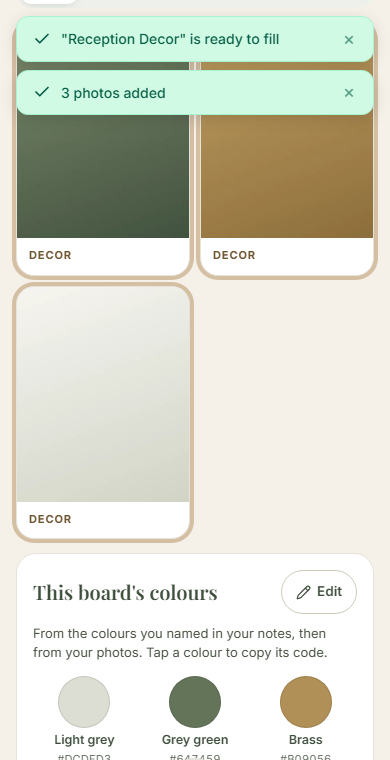
As soon as a photo exists, the "This board's colours" card appears. The colors are read on your own device — not by paid AI — from your photos and from notes that mention the word "warna", "palette", or "color". Each color shows its name and hex code; tap one to copy the code. Other color names you write in notes (say "terra cotta") do not enter automatically, but you can add them yourself in "Edit" mode via the "From your notes" section. Want detail? "See this photo's colours" reads a single photo's five main colors.
Use the palette on the invitation
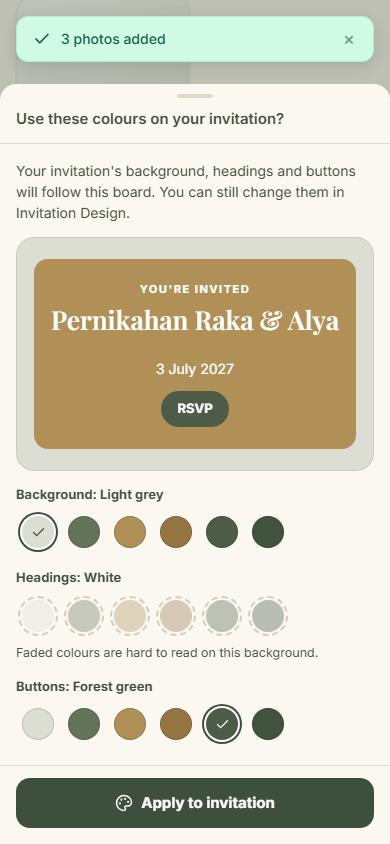
Tap "Use these colours on your invitation". The confirmation sheet lays out three color roles — "Background", "Headings", "Buttons" — with pairings already contrast-checked for readability. Press "Apply to invitation" and the invitation designer opens with that palette in place; the theme and everything else stays editable there. This needs invitation edit access, so naturally the event owner's call.
Share a view-only board
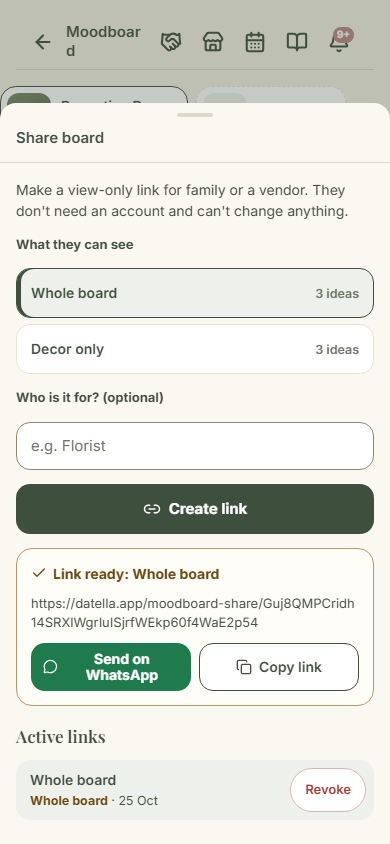
Tap "Share" to create a view-only link: "Make a view-only link for family or a vendor. They don't need an account and can't change anything." Pick the whole board or a single category, send it over WhatsApp or copy the link. Active links can be revoked any time — once revoked, nobody holding the link can open it again.
Common questions
How many boards can I create?
No special limit — just split by topic: one for decor, one for attire, one for the cake. The page always remembers the last board you had open.
Does reading the palette cost AI points?
No. The palette is read on your device straight from your photos' pixels — free, no points, and no photo is sent anywhere.
Who can edit my board?
You as the event owner, plus co-planners granted moodboard access. Other co-planners see the board read-only; a view-only link never grants editing to anyone.
Can a share link be turned off?
Yes, any time, from the "Active links" list — tap "Revoke" and the link dies for everyone holding it.
Try Datella free — sign up in under a minute.
Start free