
How to track your event budget in Datella
The Budget page answers the three questions every family meeting asks: how much is planned, how much is spent, and what is left. Every row can carry a vendor, a payment due date, and a paid mark — and amounts you mark sensitive never reach a co-planner's eyes (someone you invited to help manage the event).
Prerequisites
- An event has been created
- A rough idea of income (say, family contributions) helps, though it is optional
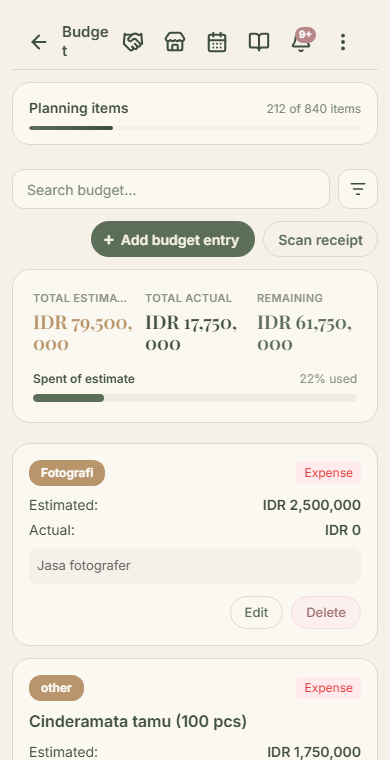
Read the summary card
Open the "Budget" tab in the bottom navigation. The card at the top shows "Total Estimated", "Total Actual", "Total Income", and "Remaining", plus a "{percent}% used" meter comparing actual spending against estimates. If you set a budget target on the event, a second meter appears — "{percent}% planned" — comparing your estimates against the target, with how far under or over you stand.
Add your first entry
Tap "Add budget entry". Pick a category (required), fill in the vendor name if there is one, then choose the type: "Expense" or "Income". Fill "Estimated" while you are still comparing quotes; "Actual" arrives once the real number lands. Income rows carry no payment status — only expenses do.
Mark bills paid and set due dates
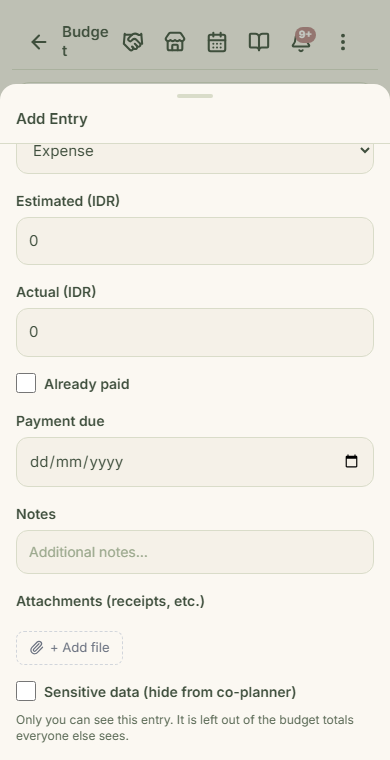
Check "Already paid" and the row gains a "Paid" badge; the due-date field disappears since it no longer matters. For open bills, fill "Payment due" — the row shows "Due {date}", and flips to "Overdue {date}" the moment it slips, so lurking invoices give themselves away.
Link a vendor from the shortlist
In "Vendor from the shortlist (optional)", type the vendor's name and Datella searches your shortlist — the vendors you keep on the Vendor page. Once linked, the row shows a vendor chip with a status dot that opens the vendor's profile in the shortlist. The reverse nudge exists too: a vendor marked "booked" in the shortlist with no budget row yet surfaces as a reminder on the summary card.
Keep sensitive amounts private
Some numbers are not for everyone — an in-law's contribution, for instance. Check "Sensitive data (hide from co-planner)" and the row disappears entirely from their view: it is not blurred, it is gone, and its value is left out of the totals they see.
Export to CSV
The ⋯ menu at the top right has "Export", which downloads a CSV with category, vendor, type, estimated, actual, notes, and attachment counts per row, closed by a Total line — ready to drop into the family group chat.
Common questions
Why does my co-planner see different budget totals?
Rows you marked "Sensitive data" are invisible and uncounted for them. Your totals are the complete picture; theirs intentionally omit the private parts.
What happens when actuals exceed estimates?
Nothing breaks — the actual figure shows in red and "Remaining" gains an "(over)" mark as a warning. That is useful signal: it points at the category to trim.
How many budget rows can I create?
Budget entries share the 15-item "planning items" quota with the checklist and vendor shortlist on the free plan — counted together across all your events; paid plans raise the total to 50, 100, or 200.
Can I attach payment proof or receipts?
Yes. Once an entry is saved, open its row and attach photos or files; the attachment count is recorded in the edit sheet and travels into the CSV.
Try Datella free — sign up in under a minute.
Start free