
How to set up guest self check-in with a QR poster in Datella
One greeter desk and four hundred guests is a queue. A QR poster moves that line onto each guest's own phone: they scan the poster, type the code from their invitation, and their arrival records itself, table number included once your seating chart is filled.
Prerequisites
- A guest list, invitations already shared
- A printer for the poster (A5 is plenty)
Turn on "Guest self check-in" in Entrance setup
In the Check-in screen, open the "Entrance setup" tab and find the "Guest self check-in" panel. The moment you enable it, Datella mints one code for your event that never changes on its own, so a printed poster keeps working even if you toggle the feature off and back on. The panel's "Open page" button lets you walk the guest flow yourself before the day.
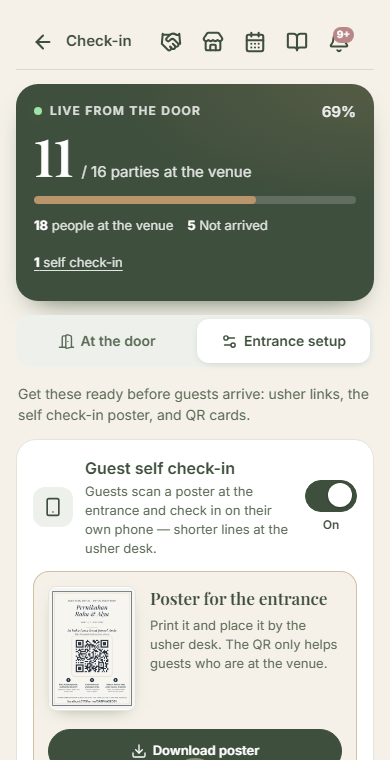
Download the poster and put it near the door
"Download poster" produces a print-ready A5 PNG: your event name in the invitation's own lettering, the date, one large QR, three short steps for guests, and a typed web address as the no-camera fallback. Stick it on the welcome desk or a standee by the entrance; one poster per hundred guests is a comfortable ratio.
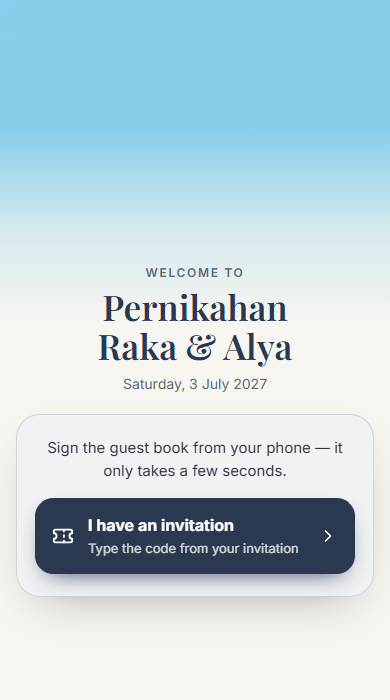
Guests scan, then type their invitation code
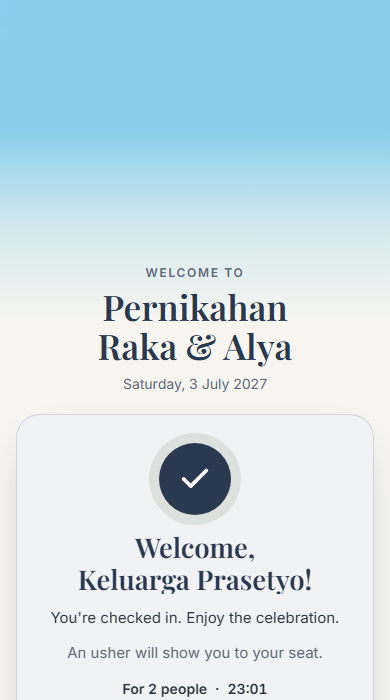
A guest opens their camera, scans the poster, and lands on "Welcome to {event}". Invited guests pick "I have an invitation", type the eight letters-and-digits from their invitation (or scan the invitation's QR), and tap "Check in now" once their name appears. The done screen reads "Welcome, {name}!" and, with seating filled in, "Please head to Table 5". No staff touched.
The safety model: two proofs, no name search
The poster only proves the guest is at the venue; identity still comes from each guest's own invitation code, and there is no name search to abuse. A guest using someone else's code sees the wrong name and a "That's not me" way out. When an entry limit trips or approval is required, this page overrides nothing: the guest is pointed to an usher, and the "Yes, I'm attending — check in" option exists only for plain attendance confirmation.
Open "On-the-spot registration" for walk-ins
The "On-the-spot registration" switch adds a second door to the guest page: "Not on the guest list?" Walk-ins type a name, party size, and an optional WhatsApp number, tap "Register & check in", and land in your list as attending. A number already on the list is refused with a pointer to their own invitation code, and a full guest-list quota closes registration politely.
Common questions
Can a stranger self check-in through the poster?
Not unless you enable "On-the-spot registration". Invitation codes belong to listed guests, and without that second door the guest page only serves codes it recognizes.
What does the guest see after checking in?
Their name, a welcome line, and a table or seat number when your seating chart is filled. A footer suggests showing the screen to an usher if asked, and a "Check in another guest" button lets one phone serve several people.
Does the guest side need internet?
Yes, the page runs in a browser with a connection. For dead-signal corners, put a staffed check-in tablet there or work the door console the usual way.
Our venue has two entrances.
Print the poster twice; both carry the same code and feed the same counts. You can add a check-in tablet at the second door with an usher link.
Try Datella free — sign up in under a minute.
Start free