
How to run guest check-in on the day in Datella
The Check-in screen is your digital front desk: arrival counts update live, one QR scan or typed code records a guest, and uninvited arrivals can still be registered on the spot. Set it up once, then just work the door.
Prerequisites
- An event with a guest list
- Guests have received their invitations (each carries a QR code)
Open Check-in from the invitation tools
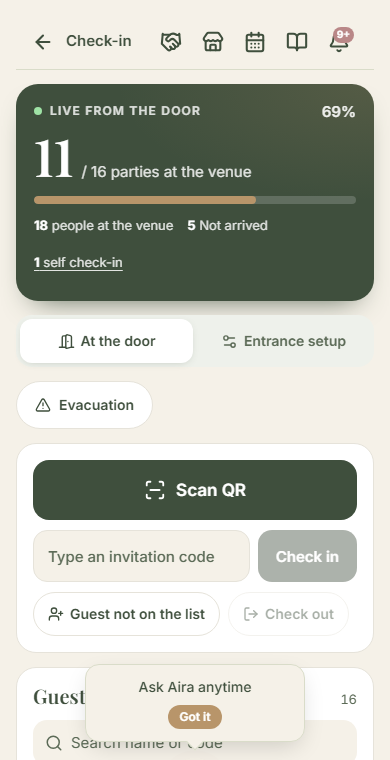
From the event page, open the invitation tools and pick Check-in. The screen has two tabs: "At the door" for the day itself, "Entrance setup" for settings. The door tab leads with a live line showing how many parties are inside and what percentage of the list that is, followed by "person at the venue", "Not arrived", and "self check-in" chips; the last one filters the list when tapped.
Scan a QR or type the invitation code
Tap "Scan QR" to open the camera and point it at the QR on a guest's invitation. Camera scanning needs Chrome on Android; anywhere else, type into "Type an invitation code" (they look like UDHX-D2ME, eight letters and digits) and press "Check in". The guest's name appears on a green card and the counts move. Scanning someone twice does no harm: the card just reads "Checked in".
Register guests who show up uninvited
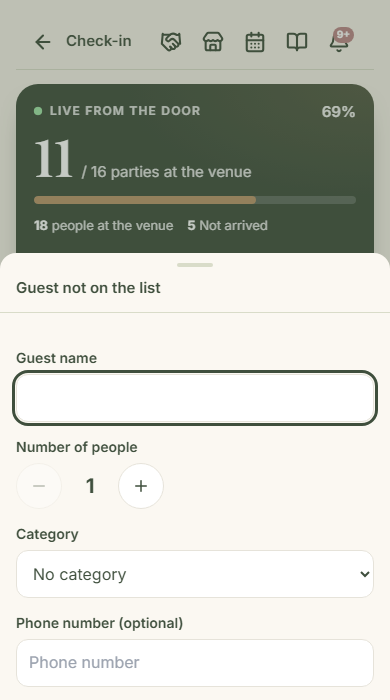
Tap "Guest not on the list" to open the walk-in sheet: name, party size from one to twenty, a category, and an optional phone number, then "Add & check in". They are recorded as attending and join the list immediately. If the phone number turns out to exist already, Datella offers "Check in {name} instead" rather than creating a duplicate.
Mis-scan? Cancel it, do not check out
Two buttons that look alike but are not. "Cancel" on the green card erases a wrong scan as if it never happened. "Check out" records the guest leaving, and once entry limits are on, leaving spends one entry. Above the list, a "Checked in: {name}" bar undoes the last action, or offers "Check in again" to redo it.
Set entry limits and approval before the day
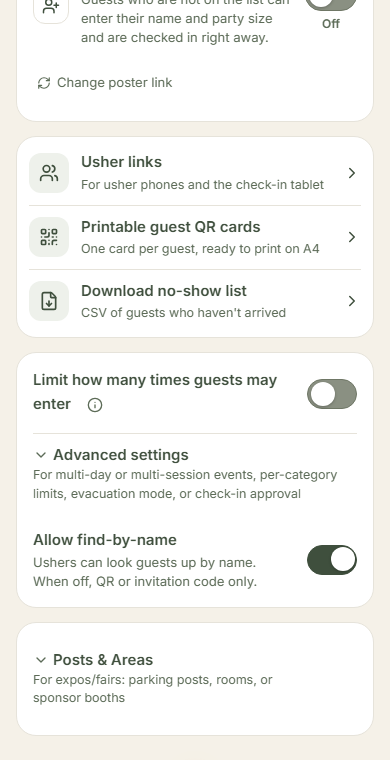
In "Entrance setup", turn on "Limit how many times guests may enter" when the format needs it, a single-entry seminar for instance. A single-entry limit is strict: once a guest leaves, they cannot re-enter without an override. With a limit of two or more, in-and-out within 15 minutes always counts as one, so a bathroom trip never costs an entry. Advanced settings add per-day or per-session counting, per-category limits, "Only guests marked Attending can check in", and "Evacuation mode" for emergencies: while on, entries stop counting and nobody is declined.
Admit a guest who tripped the limit
A guest past their entry limit surfaces a red "Entry limit reached" card with tappable reasons: "Stepped out briefly", "Family", "Wrong record", "Host's call", and more. One tap admits them, and every admission lands in the "Overrides & sync conflicts" log.
Common questions
What if a guest forgot their QR or has no phone?
Type their invitation code, printed on the paper or WhatsApp invitation, into the same box, or find them in the list and tap "Check in" on their row. Neither? Register them through "Guest not on the list".
Is check-in available on the free plan?
Yes. Check-in, QR codes, and usher links are not paywalled; the plan caps only apply to the size of the guest list.
The QR camera will not open on my phone.
Camera scanning needs Chrome on Android. In other browsers the button falls back to the typed-code hint; use the "Type an invitation code" field instead, the result is identical.
If an already-checked-in guest is scanned again, does it double-count?
No. A repeat scan only shows "Checked in" without touching the counts, so two staff at two doors cannot double-record anyone.
Try Datella free — sign up in under a minute.
Start free