
How to build a seating chart in Datella
The chart here is not a pretty picture with fake chairs: every table you place has real seats wired to your guest list, so occupancy counts itself as you seat people. You arrange by touch, phone included, and the result prints or ships as an image to your team.
Prerequisites
- An event with a guest list
- A rough idea of the room: round or long tables, stage or not
Open "Seating chart" from Home
Tap the "Seating chart" tile on Home. The canvas is A1 paper size, so a hundred tables will not run out of room. If the venue sent you a floor-plan photo, load it through the More menu as an underlay behind the tables and trace the room's actual shape table by table.
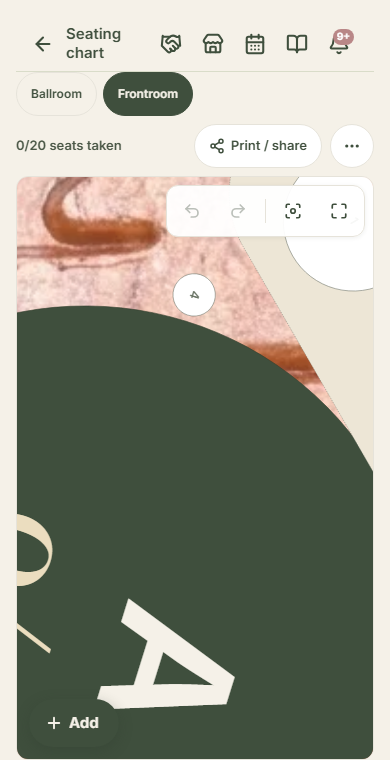
Add tables and chairs
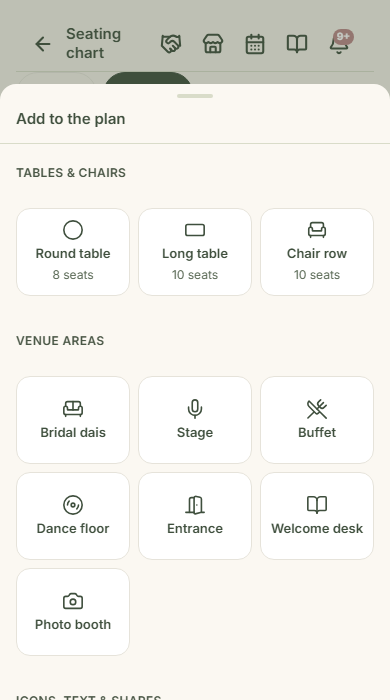
Tap "Add" to open the palette. Under "Tables & chairs" you get a Round table (eight seats), a Long table (ten), and a Chair row (ten), each adjustable up to a hundred seats. A chair row without a table is exactly what an akad, church service, or seminar needs. The other groups hold ready-made venue areas, Bridal dais through Photo booth, plus decor icons, text, and shapes for polish.
Position, size, and rotate
Touch a table to select it: a rotate handle appears with a live degree readout that moves in five-degree steps and pulls toward forty-five-degree multiples, plus-minus fifteen-degree buttons for quick work, and a size handle to scale. Drag with a finger. For decor, "Bring forward" and "Send backward" settle the layering. On a computer, Shift+click selects several objects and moves them together.
Name tables and manage rooms
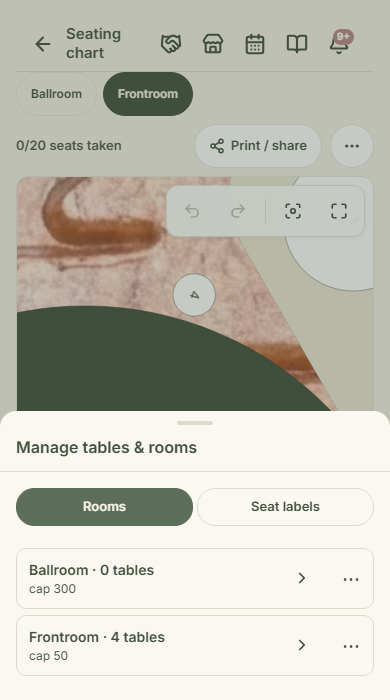
Tap "Rename" to name a table, "Table 1" or "Family table" as you like, because this is the name guests will see. Through "Manage tables & rooms" you add rooms (main ballroom, second hall), each with its own tab, and set each room's capacity; seat numbers are assigned automatically per table. A two-session or two-floor event becomes two clean charts under one event.
Mis-drag? Undo
Every move is recorded; "Undo" walks back step by step, up to two hundred of them, and seating a whole family counts as one step, not ten. Ctrl+Z works on a computer. Experiment freely, nothing you build carefully gets ruined by a stray drag.
Common questions
Phone only, or do I need a computer?
Phone works; every control is touchable. A computer adds comfort: Shift+click multi-select, Ctrl+Z, and arrow-key nudging.
How many tables and chairs can I place?
A hundred seats per table and no table cap. Room capacity exists as a fire-code reminder, not as a technical wall.
Can I use the venue's own floor plan as a guide?
Yes. Load the photo from the More menu; it appears as a faint underlay you can trace, replace, or remove at any time.
Will guests see this chart?
Guests see outcomes, not your working file: a table number at check-in, on the self check-in done screen and on the usher's scan card. The full chart is for you and your team.
Try Datella free — sign up in under a minute.
Start free